1. Turning off the fancy Windows XP Graphics will noticeably increase the speed of your computer.
Do following steps.
i. Go to Start -->Settings--> Control Panel --> System
Note:- You may need to 'Switch to Classic Mode' to see the System applet.
ii. Go to the Advanced tab. Click the Settings button under Performance.
iii. Select the 'Adjust for best performance' radio button, then Apply, and Ok.
iv. The graphics aren't as flashy, but your computer will run a lot faster.
And more best thing is don't save more files on Desktop.
2. for the cleaning purpose some third party software will available in the internet those are free and some may be costly. Those software work automatically cleans our temp, cookies, recently used and many others files.
Showing posts with label 10 PC Tips for speed up your Computer. Show all posts
Showing posts with label 10 PC Tips for speed up your Computer. Show all posts
Tip-8:: Stop unwanted StartUp-Programs
1. When your starting/booting your computer it loads the programs Default. You can change and Load your computer manually then your computer boots faster than default booting.
if you want set your computer booting manually do follow.
i. Click on Start button --> Click on the Run type msconfig press the Enter then one window will appear i.e System Configuration Utility
 ii. choose startup tab and select(uncheck) programs do not want start up
then apply and ok.
And one more thing
iii. Make windows load Faster :-
Select BOOT.INI Tab in the system configuration Utility window (I mean above window)and make boot loader time 3 seconds.
Over to the right there will be a box labeled Timeout with 30 in it. Change the 30 to a 3.
if you want set your computer booting manually do follow.
i. Click on Start button --> Click on the Run type msconfig press the Enter then one window will appear i.e System Configuration Utility
 ii. choose startup tab and select(uncheck) programs do not want start up
then apply and ok.
And one more thing
iii. Make windows load Faster :-
Select BOOT.INI Tab in the system configuration Utility window (I mean above window)and make boot loader time 3 seconds.
Over to the right there will be a box labeled Timeout with 30 in it. Change the 30 to a 3.

Tip-7:: Uninstall The Unwanted software in your PC
1. This is very help full tip when your Job work required some software at the time u installed software and now your not using that software so there is no use with that software now.
Just follow the steps to Uninstall the software from your PC.
1. find out the unwanted software ( click on the start --> programs)
2. Again click on the start --> Settings --> Control panel
3. One window will open i.e Control panel
4. Click on the Add or Remove Programs ( window will open )
5. Select the software from the list ( only unwanted software, do not uninstall other programs your system will fail to Log on)
6. When you are selecting the software/program at the end of the program one button will appear i.e Remove
7. just click on the remove then window will appear then after follow the steps
Note:- In order to do this uninstall Software/programs you must Logged as a Administrator
Just follow the steps to Uninstall the software from your PC.
1. find out the unwanted software ( click on the start --> programs)
2. Again click on the start --> Settings --> Control panel
3. One window will open i.e Control panel
4. Click on the Add or Remove Programs ( window will open )
5. Select the software from the list ( only unwanted software, do not uninstall other programs your system will fail to Log on)
6. When you are selecting the software/program at the end of the program one button will appear i.e Remove
7. just click on the remove then window will appear then after follow the steps
Note:- In order to do this uninstall Software/programs you must Logged as a Administrator
Tip-6:: Defragment your Disk Drives

1. Defragmentation is one of the use full tip for speed up your P.C. With the help of Defragmentation we can allocate files in a ascending order so that file will open very quick.
steps for defragmentation,
1. open your computer ( double click on my computer icon on desktop)
2. Right click on the Drive C: --> and then select the properties
3. Local Disk (C:) Drive window will open
4. select the Tools tab
5. Click on the Defragmentnow button
6. Again one window will appear i.e Disk Defragmentation
Now Select the Drives like C, D, E etc..
Select any one Drive for Defragmentation after completing one select another one
After selecting any one Drive
Click on the analyze button then click on the defragment button
some process will be happen depends upon the your Drive Size ( files will be (moving) allocating in order)
After finishing the Defragmentation your system will be faster.
Note: Do this process for every drive in your system and if your regularly coping files to your system then you have to do this at least once a month.
Tip-5:: Error-checking (Check your system Hard Disk bad sectors)
1. In this tip if any Errors found in our Hard disk it clears those error with this step then your hard disk gives good performance.
How to clear the errors in our hard disk follow the steps below

1. open your computer ( Double click on my computer icon)
2. Right click on the C: Drive then click on the properties.
3. Local Disk (C:) properties window will open then
then click on the Tools tab then again Check Disk Local Disk (C:) window will open
4. Now select check disk option 1 then click on the start.
5. After completing first option then select 2 one i.e. Scan for and attempt recovery of
bad sectors then click start, after completing click Ok.
These steps will help you for your system hard disk good performance because some bad sectors will happens in your hard disk with viruses.
How to clear the errors in our hard disk follow the steps below

1. open your computer ( Double click on my computer icon)
2. Right click on the C: Drive then click on the properties.
3. Local Disk (C:) properties window will open then
then click on the Tools tab then again Check Disk Local Disk (C:) window will open
4. Now select check disk option 1 then click on the start.
5. After completing first option then select 2 one i.e. Scan for and attempt recovery of
bad sectors then click start, after completing click Ok.
These steps will help you for your system hard disk good performance because some bad sectors will happens in your hard disk with viruses.
Tip-3:: Clean your Disk (Disk Clenup)
1. Mostly our operating system installed in C: drive only if your operating system installed in C drive so u must clean your C drive it means some wastage files are stored in C drive if you do this then no need to delete recycle bin, temporary files other files. Because it deletes the 1.Downloaded Program Files 2. Temporary Internet Files, 3. Recycle bin, 4. Temporary files, 5. WebClient/Publisher Temporary Files, 6. Compress old Files and 7. Catalog files for the Content Indexer.
step to Disk clean
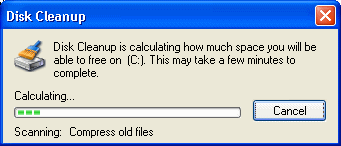
open your computer --> Right click on C: Drive and select properties --> click on the Disk clean button at right side bottom of window --> again Disk cleanup for (C:) window will open now select i mean tick mark all the items and then after click ok --> then click yes it will clean the selected items from C: drive.
with this Disk Clean method we get some space and as well as system will be faster.
Note:- if your operating system installed in other drives, you have to do only that installed drive.
step to Disk clean

open your computer --> Right click on C: Drive and select properties --> click on the Disk clean button at right side bottom of window --> again Disk cleanup for (C:) window will open now select i mean tick mark all the items and then after click ok --> then click yes it will clean the selected items from C: drive.
with this Disk Clean method we get some space and as well as system will be faster.
Note:- if your operating system installed in other drives, you have to do only that installed drive.
Tips-3:: Delete Prefetch files
In order to delete prefetch files from your system u must log in as Administrator so that you can delete the prefetch files these files are never useful.
Location for the prefetch files
C:\WINDOWS\Prefetch
select all the files and delete
open from run command
click Start --> Run type prefetch then wilndow will open the files select all the files and delete
You will get some free momery and system will be faster.
Location for the prefetch files
C:\WINDOWS\Prefetch
select all the files and delete
open from run command
click Start --> Run type prefetch then wilndow will open the files select all the files and delete
You will get some free momery and system will be faster.
Tip-2:: Delete your Temp Files
2. we are regular computer user. So some temporary files will be located in our system or computer in order to speedup and good performance of computer we must delete temporary files from our system.
Location of Temporary files
C:\DOCUME~1\ADMINI~1\LOCALS~1\Temp
Delete all the files.
shortcut: start -->Run --> in that type %temp% then window will open, delete all the files.
2.1 Another temp folder there in our system or computer
Location : C:\WINDOWS\Temp
Delete all the files.
shortcut: start -->Run --> in that type temp then window will open, delete all the files.
Now your computer gives faster performance.
Location of Temporary files
C:\DOCUME~1\ADMINI~1\LOCALS~1\Temp
Delete all the files.
shortcut: start -->Run --> in that type %temp% then window will open, delete all the files.
2.1 Another temp folder there in our system or computer
Location : C:\WINDOWS\Temp
Delete all the files.
shortcut: start -->Run --> in that type temp then window will open, delete all the files.
Now your computer gives faster performance.
Tip-1:: Delete your Cookies and speed up your internet conncetion and system
1. If you have Internet connection in your computer. You must delete cookies from your system at least once in a week because when u r open any of the sites the cookie will be created or saved in a folder so you must delete those cookies in order to speed up your Internet connection as well as your system.
if your windows installed C: Drive then the folder path is C:\Documents and Settings\user\Cookies
or you can open the folder directly from run command
Steps for open cookies folder
click on the Start -> Run Run window opens then type cookies folder will be open select all the files and delete.
Note: Index file will not be deleted.
if your windows installed C: Drive then the folder path is C:\Documents and Settings\user\Cookies
or you can open the folder directly from run command
Steps for open cookies folder
click on the Start -> Run Run window opens then type cookies folder will be open select all the files and delete.
Note: Index file will not be deleted.
Subscribe to:
Posts (Atom)